Showing posts with label Tutorials. Show all posts

Tutorial - Recoloring Trees  

One of the level prototypes that I did this month was for a forest area. This is a crucial point in the story and I wanted this area to be distinct from the forests you see in the OC or other mods. So, I thought, let's make it an autumn forest. With all the fall color variations, one can go really wild and the effect should be a totally different visual experience!

I love autumn!
So, I started exploring the SpeedTreeCAD.exe which the Toolset wiki claims can be used to customize the huge number of parameters a tree has, which it can do. Unfortunately, in the limited time I've spent fiddling with it, replacing textures seems a tad difficult. You can select your own diffuse map but for some reason, the individual leaf/frond textures don't update. So, I went about it in another way and the result is another tutorial - Recoloring Trees!

Tools you will need
  • SpeedTreeCAD.exe (strictly not necessary - XVI should suffice)
  • A hex-editor (I use XVI32)
  • An image-editing program (Gimp or Photoshop)
Before we go on, there are a few important points to note about the SpeedTree files. A tree is made up of different components - a bark texture, one or more leaf textures, one or more frond textures and an overall diffuse map containing the leaf and frond textures. In the below workflow, we will be modifying only the leaf and frond textures and frankly, that should be enough to present a different type of tree. Anyway, on to the workflow!

## Export from speedtreetools.erf

Open up speedtreetools.erf present in the packages/core/data_tools folder under the Dragon Age installation directory and extract all the resources to a folder of your choice. We will be using this as a reference.
Copy the .spt and .dds file for the tree you need to modify.
Examples for this workflow - a bush (bsh_c_boxwd) and a tree (tre_f_oaksmall)
You can copy the .tga files and edit them individually too - entirely up to your preferences. I will be generating them from the .dds file.

## Image Editing
  1. Open up the diffuse map in the image editing program. I will use Gimp as a reference for this tutorial. When asked to load mipmaps, select Yes.
  2. A simple way to adjust color is to go to Colors -> Components -> Channel Mixer and play around with the settings. Once you've settled on your choice of color, save the file to a different folder. The name should follow the following convention:
  3. [3-character tree type]_[1 character]_[anything]_diffuse.DDS Make sure the character length is constant Example: bsh_t_boxwd_diffuse.DDS or tre_t_oaksmall_diffuse.DDS

After editing the colors in Gimp - the left 2 are leaves and the one in the right bottom is the frond
  1. The next step is to generate the TGAs. We will resize the canvas to the appropriate TGA dimensions and save them.
  2. Bush DDS files are 512 x 512 and TGAs are 256 x 256 Tree DDS files are 1024 x 1024 and TGAs are 512 x 512
  1. Go to Image -> Canvas Size and change the size to either 256x256 or 512x512 depending on which tree type you are editing.
  2. Adjust the canvas setting - in Gimp this can be done by simply moving the image around so that the desired area is within the bold box in the Preview Pane. The objective is to do 3 exports - 2 for the individual leaves and 1 for the frond.
  3. Export these as TGAs and save them in the same folder as the modified DDS. File name doesn't matter for now.
## Open the .spt file in XVI32
  1. Search for diffuse (case-insensitive - some files have caps). There will typically be 2 entries for the diffuse DDS map. Change the file name referenced to the name you've saved your DDS file as.
  2. Search for tga (case-insensitive). There will be at least 3 references:
  3. BK_ - leave this as it is (unless you've modified the bark texture too) LV_ - note down the file name(s) FR_ - note down the file name(s)
  1. Go to your modified TGAs and name them in a similar format but change something to identify it as yours.
  2. Example: Boxwood bush: LV_t_boxwood1.tga, LV_t_boxwood2.tga, FR_t_boxwood.tga Oaksmall tree: lv_t_oak_1.tga, lv_t_oak_2.tga, fr_t_oak.tga As you can see, there is no naming convention for these. So, you have to open the .spt in a hex-editor to find out these names. An alternative is to open the .spt in SpeedTreeCAD.exe and note down the names from Global (Diffuse name), Leaf (leaf names) and Frond (frond names) tabs. 
  1. Go back to the hex-editor and replace the names present with your names (make sure length is constant!)
  2. Once the changes are done, save the .spt with another name. This should follow the same conventions as the diffuse DDS file
  3. [3-character tree type]_[1 character]_[anything].spt The name length doesn't matter here

## DA Toolset
Copy the modified TGA, DDS and SPT files to the core/override folder you use - I do level-building from the Single Player module so these have to go under packages/core/override while building. Once the level layouts are done and moved to your module's core/override folder, you can move these files there.
Open up DA Toolset and insert a new Tree Controller. If you've done everything correctly, you should be able to see and place the new trees in your level.
Toolset shot
Do the regular export process and you should be able to see it in-game without issues -
In-game shot
If you see blocky leaves in-game, then, it is possible that you've messed up the TGA editing.
One obvious thing to note here is that you do not want to replace the textures in the existing speedtree files -> not unless you want those modified trees in all your levels where that tree is placed.

Well, that was a long one to write and format. If you have any questions, post them here or better, in the BSN Custom Content Forum thread

Read More...
World Map Tutorial - Part 2  

In Part 1 of this tutorial, the basic setup for custom world maps was covered. In this tutorial, we will unravel the event flow when using world maps and the functionality that can be embedded in each of those event handlers.

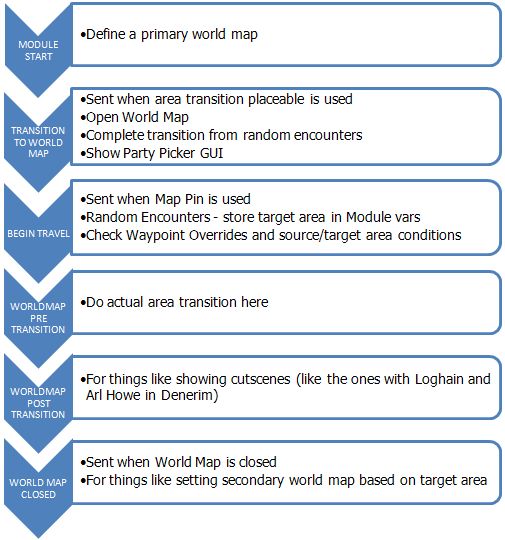
First, a short illustration on the event flow tied to world map usage:

Event Flow related to World Map usage

It is good practice to define a primary world map in the EVENT_TYPE_MODULE_START event just to avoid any gotchas later. This just makes sure there is a world map displayed if the player initiates an unforeseen transition ;)
object oWorldMap = GetObjectByTag("<world map tag>");
WR_SetWorldMapPrimary(oWorldMap);

If you want, you can also set a secondary world map using:
WR_SetWorldMapSecondary(object oMapID);

What is the difference? A secondary map enables the second icon in the World Map allowing you to see both world maps. To give an example in the OC, it would be like Denerim and the Wide Open World. When in Denerim, doing a transition would take you to the Denerim map. Clicking the secondary map button would take you to the Wide Open World.

EVENT_TYPE_TRANSITION_TO_WORLD_MAP is the core event where you evaluate plot flags or put in checks to determine which world map to show and actually show the map.
SetWorldMapGuiStatus(WM_GUI_STATUS_USE);
OpenPrimaryWorldMap();

Two important checks (if you have the associated features in your module) that must be done here are:
If the player is exiting out of a random encounter, you have to make sure that the player continues on his way rather than selecting a new destination (this is just for the animation part)
if (GetEventString(ev, 1) == RANDOM_ENCOUNTER_TRANSITION_ID)
{
// exiting random - encounter - finish travel animation
WorldMapCompleteRandomEncounter();
break;
}

If the player is exiting out of a party camp and you want the Party Picker to be shown, you do it here
if(GetEventString(ev, 1) == CAMP_EXIT_TRANSITION_ID)
{
SetPartyPickerGUIStatus(PP_GUI_STATUS_USE);
ShowPartyPickerGUI();
break;
}

The constants used above are defined in the world_maps_h which is a core include and hence, can be included directly in your script - unless you want to change some of the functionality.

Once you show the World Map, the player can select a Map Pin to travel to. This triggers the EVENT_TYPE_BEGIN_TRAVEL where all the grunt work related to area-related plots, random encounters, camp travel is done. Finally, the WorldMapStartTravelling function is called to start the travel animation (important when random encounters are specified; otherwise they will not work)

A few important checks that are usually done here would be -
  • Check if waypoint overrides are set for the map pin (this is actually passed as an event parameter - GetEventString(ev, 2)
  • Handle random encounters - this is basically handled via plots unless you want really random encounters. In any case, this is scripted independently
  • Store the target map pin's area and waypoint tags - the area tag is passed as GetEventString(ev, 1) and the waypoint tag is determined from the waypoints 2da unless a waypoint override is present. This is important if you have random encounters (see EVENT_TYPE_WORLDMAP_PRETRANSITION event below)
  • SetLocalString(GetModule(), WM_STORED_AREA, sTarget); SetLocalString(GetModule(), WM_STORED_WP, sWP);
Camp related checks
  • Store the current location from which the world map was accessed so that when transitioning back, you can jump the party straight back
  • If source area is camp and, then basically don't do the animation trail. Jump the player back to the previous area (tied directly to the point above)
  • If the target area is camp, again, don't play the animation but do a direct transition
  • If source and target are both camps, empty the party and place the followers in their positions
EVENT_TYPE_WORLDMAP_PRETRANSITION is a pretty basic event that is called at the same time as the animation trail starts. All you do here is do the actual transition to the target area - except when the target area is the party camp, in which case it is done in EVENT_TYPE_BEGIN_TRAVEL itself. No fancy stuff here.
The one important thing to remember here is - the player will not be able to click on a map pin when exiting from a random encounter. Hence, you cannot get a target area from the event parameters. This is the reason why you store the target area and waypoint in the module variables in the EVENT_TYPE_BEGIN_TRAVEL event.
string sArea = GetLocalString(GetModule(), WM_STORED_AREA);
string sWP = GetLocalString(GetModule(), WM_STORED_WP);
UT_DoAreaTransition(sArea, sWP);

EVENT_TYPE_WORLDMAP_POSTTRANSITION is an optional event in the sense that it need not be handled for the world map to work correctly. However, this is a great area to do all those 'whats-happening-in-the-evil-genius'-lair' type of cutscenes. Remember the cutscenes with Loghain in the OC or the ones with The Valsharess in NWN-HotU? These can be done in this event.

EVENT_TYPE_WORLDMAP_CLOSED is also not a compulsory event unless you have a party camp in your module or multiple primary/secondary map combinations. The important (and only?) event parameter here is the first integer parameter:
GetEventInteger(ev,0) 
  • 0 when the world map action is cancelled by the player
  • 1 when it is closed after a travel is completed
Obviously, the above events can be analyzed and dissected even more but I don't plan to do that. The above information is enough to get world map transitions working in your module.

Now, let's get to the interesting part - customizations/changes from what's done in the OC.
  1. The waypoints 2DA is not an integral part of the world map functionality. It is deduced via scripting through the WM_GetWorldMapTargetWaypoint function in world_maps_h. All it does is go through the 2DA line by line to compare the area tags and then, get the waypoint tag. You can, instead write your own 2DA to put in waypoint tags based on plot conditions or specify a list of random waypoints from which one is picked to jump to (a diablo-esque dungeon with multiple entry points?) or if you have just one entry point in your areas, skip this 2da altogether, keep the area and waypoint tags same and use GetEventString(ev, 1) from EVENT_TYPE_BEGIN_TRAVEL for both.
  2. The first 2 integers in EVENT_TYPE_BEGIN_TRAVEL are used in the OC to determine random encounters based on terrain. That's not a hard and fast rule since random encounters are scripted and there are no core functions tied to them. What does this mean? Random encounters have to be entirely scripted by the module maker and as such, can be entirely different systems. In that case, you can use these 2 integers coupled with the waypoint changes above to get a more extensive waypoint handling system.
  3. Let's say you want to show something to the player - a written scroll with hidden clues (National Treasure, anyone?) or a picture clue. You could create a map with that scroll/picture and show that to the player with OpenPrimaryWorldMap (after setting it to the Primary map, of course) - basically, it can be used to show any image. 
I actually had a couple of other ideas but haven't explored the system yet to see if they would actually work. You think you know everything and then, the game throws a googly at you by hard-coding something within the engine or the GUI (the blight animation in this case).
I hope this tutorial proves useful to you. I will be posting the tutorial on the social wiki soon so if you find something that needs further explanation or if you uncover anything else related to the map-making process, please add it to the page. Feedback is also welcome here, if you need further clarification on any of the points above.

One last thing - the process to integrate custom world maps into the OC/Awakening is the same process as described in Part 1 of the tutorial. The only difference would be that you will have to intercept the above events prior to them being called by the official game and prevent them from being handled if you so desire. Since these are all module events, it is pretty straightforward to override them in your custom module script.

    Read More...

    World Map Tutorial - Part 1  

    Well, I know we already have a Map Tutorial on the Bioware wiki (which will be updated shortly by yours truly) but as far as I know, no one has been successful in getting a custom map to work in a stand-alone module. Or, if someone did, no one has come forth on the forums to help those who've had problems. So, here is a step-by-step tutorial on getting custom maps to work.

    Step 1: Map Image

    The map can either be in .tga or .dds formats.
    TGA: You can use a freeware image editor like Irfanview or Gimp to convert a .jpg/.jpeg file to the .tga format.
    DDS: You can use nvdxt.exe present in the <Dragon Age Install folder>\tools\ResourceBuild\Processors folder to generate a DDS file. nvdxt.exe is a batch utility and to use it you need to open a command prompt (Start -> Run -> cmd) and enter your command. An example to convert x.tga to x.dds is:

    nvdxt.exe -file x.tga -output x.dds -nomipmap -8 u8888 -prescale length width

    -prescale length width lets you put in the size (should be multiple of 4) to which the x.tga should be scaled before conversion

    If you are using Photoshop, you first need the Nvidia Photoshop plug-ins and if you are using Gimp, you need the Gimp DDS plug-ins. In Photoshop, I saved my DDS as DXT5 ARGB 8bpp with Interpolated Alpha and No MipMaps.

    The game requires the image to be with the client's localized name but the toolset reads the actual image so you need both <image_name> and <image_name_en-us> (for English clients). You have to place both images in your addin's module\override folder.

    The game's world map (both OC and Awakening) is 912 x 687 pixels - this is the canvas size. The images have a 24 pixel transparent border which would make the actual image 864 x 639 (640 if you are using your own map)

    Why is this important?
    The map is anchored at the top-left corner of the book image and this corner is actually slightly above the book border. Without this transparent section, your map will never be aligned exactly in the center of the book.

    Sample map in add-in module with DDS extension
    There are ways to work around this but I will cover them in Part 2 if I am unable to figure out the transparent border.

    Step 2: Building the m2DAs

    You need to extend two 2DAs for the worldmap to function correctly in-game and create as many worksheets as you need based on the TargetWpTable entries (see below). All these 2das go into your module\override folder.

    worldmaps from worldmaps.xls: A few things to note here:

    worldmaps_tut 2da
    • The ID has to be between 0 and 255. Anything over that and the map will not work in-game and you will see the infamous grey square at the top left.
    • Bioware uses 1-5 for the OC and 10 for Awakening. I doubt the other DLCs use different world maps - if anyone has played them and has seen a different map, let me know.
    • The TargetWpTableID should match the IDs used to extend the m2da_base 2DA
    • The TargetWpTable entries should match the different worksheets containing the Source/Target waypoint information. I have yet to test whether this is actually used.
    • The MAP column contains the names of your map images
    • The Label column is the one used by the Toolset
    • As far as I can determine, the NameStrRef is not used anywhere so you can keep that at 0
    m2da_base from 2da_base.xls: Create a new entry for each of the TargetWpTableID used in the worldmaps 2da extension. Keep in mind that the m2da_base is, in itself, a m2da so you need to only have a worksheet with the new rows.

    source-target waypoint 2das: You can copy the existing target_wps_* worksheets and edit them if you so wish. It is basically a table with source and target areas on the rows and columns respectively. Their intersection contains the waypoint tag you will be transitioned to when traveling from the source to the target area.
    test_map_1_wp 2da

    Step 3: Setting up the map in the toolset

    This is probably the easiest part. Fire up the toolset, navigate to the Maps tab, right-click and select New -> Map.

    TIP: If you didn't know, going to the appropriate tab (Maps, Scripts, etc) and then selecting the New option by right-clicking there automatically positions the corresponding resource at the top of the menu. Selecting a folder and doing this creates the resource within that folder.

    If you've done the previous 2 steps, you should see the map name (Label) in the drop down list for the Map within the toolset and the image should appear correctly.

    To test what you've done till now in-game, just create a couple of map pins, save and export without dependent resources. Create a placeable using one of the Area Transition type placeables and set the PLC_AT_DEST_AREA_TAG to world_map (this is a hard-coded value inside the utility_h script). You can use any placeable for a transition but it is not as simple as this and I want to keep things simple till I start Part 2 of this tutorial :)

    Fire up your module script and add the following lines of code:
    #include "events_h"
    #include "global_objects_h"
    #include "sys_chargen_h"
    #include "sys_rewards_h"
    #include "world_maps_h"

    void main()
    {
        int nEventHandled = FALSE;
        event ev = GetCurrentEvent();
        int nEvent = GetEventType(ev);

        switch(nEvent)
        {
             case EVENT_TYPE_MODULE_START:
             {
                object oWorldMap = GetObjectByTag("<Tag of the placeable>");
                WR_SetWorldMapPrimary(oWorldMap);
                break;
             }

             case EVENT_TYPE_TRANSITION_TO_WORLD_MAP:
             {
                SetWorldMapGuiStatus(WM_GUI_STATUS_USE);
                OpenPrimaryWorldMap();
                break;
             }
        }

        // if this event wasn't handled by this script fall through to the core script
        if(!nEventHandled)
        {
            HandleEvent(ev, RESOURCE_SCRIPT_MODULE_CORE);
        }
    }

    Export the resources for your module, start Dragon Age and launch your module. Once you click the Area Transition placeable, your map should be displayed.

    Lastly, to show that this works with more than one custom map in the same add-in, another image. This one uses a .tga file as the world map and is bigger than the other one - just to show that there is no limitation on the size of the image - but you can notice the icons inside the map area -> the underlying book size is hard-coded.
    Sample map in add-in module with .TGA extension
    Part 2 of the tutorial will cover the scripting behind transitions, how to bypass/override certain events, customizations possible within the existing event framework and an explanation (or workaround) of the 24-pixel border. Stay tuned!

    I did my testing as part of my module so if any of you who read this run into issues or find something inadequately explained, let me know and I will see what I can do.

    Read More...